

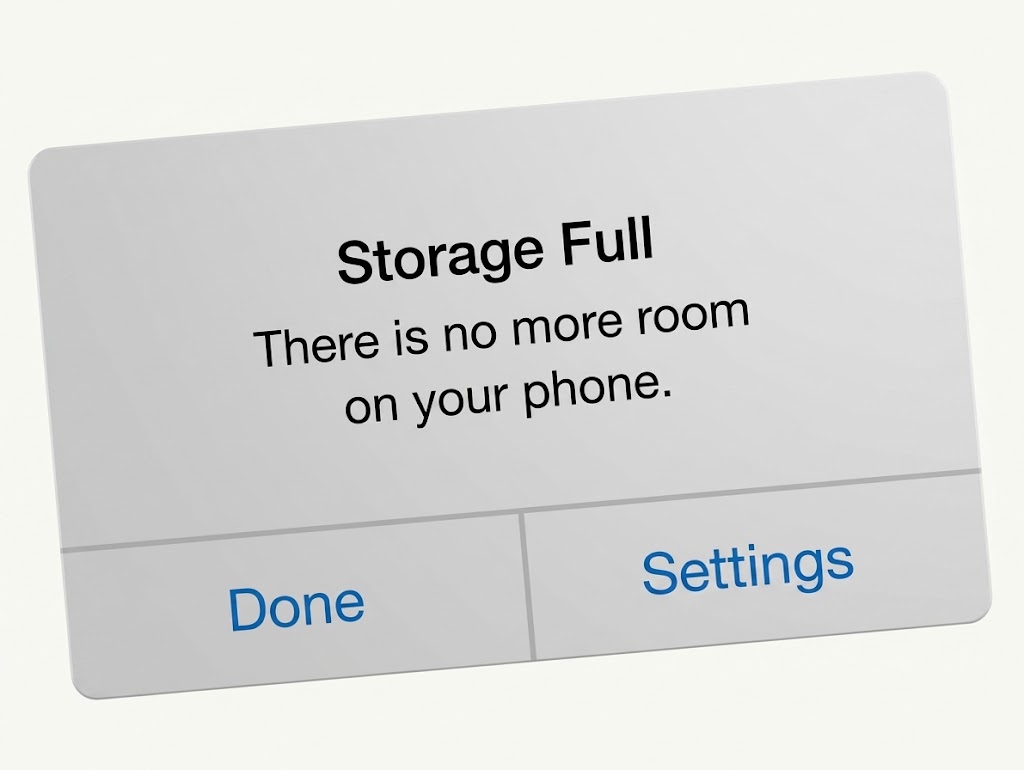
Your phone can run out of storage because apps, caches, downloads and system data take up space even when you have very few visible files.
Why Is My Phone Storage Full When I Have No Files? Here’s How to Fix It
Your gallery is almost empty, you have deleted old downloads and there are barely any documents on your phone yet the dreaded “storage full” warning refuses to disappear. The missing space is probably not missing at all. It is simply being used by things your normal file browser does not make obvious.
When your phone says its storage is full, it is measuring everything stored internally, not just the files you can easily see. That includes installed apps, app databases, cached content, downloaded music and videos, message attachments, email data, temporary files, system resources and even cloud files that have been downloaded for offline access.
Apple, for example, separates iPhone storage into categories including apps, photos, media, Mail, Messages, downloaded iCloud Drive files, system files and “Other” data containing items such as caches, logs and indexes. Android devices use similar categories, although the names vary between manufacturers. So before blaming your photos, open the storage breakdown.
On an iPhone, go to Settings → General → iPhone Storage.
On most Android phones, go to Settings → Storage, although Samsung and other manufacturers may place this under Device Care or a similar menu.
1. Your apps are storing far more than the app itself
An app that was relatively small when you installed it can eventually occupy several times that amount. Social-media apps accumulate thumbnails, watched videos and temporary resources. Browsers store website data. Streaming apps may hold downloaded episodes, songs or podcasts. Navigation apps can contain offline maps. This is why simply counting your installed apps is misleading.
Open your phone's storage settings and sort or inspect apps by size. You may discover that an app you rarely think about is consuming several gigabytes because of its stored data. On Android, Google says Clear cache removes temporary app data, while Clear storage removes the app's data much more aggressively. Do not confuse the two. Clearing storage can remove local information and require you to sign in or configure the app again.
2. “Other” and system data can become surprisingly large
One of the most confusing categories is labelled Other, System Data or something similar. It is not necessarily one giant mysterious file. Samsung explains that its Other category can contain app data, system files, cached information and temporary files that do not fit neatly into categories such as images or videos. Apple similarly includes caches, logs, Siri voices, dictionaries, indexes and other system resources within its broader storage categories.
Some of this storage is necessary and should not be touched. Some is temporary and may shrink automatically. The important lesson is not to install a random “phone cleaner” simply because System Data looks large. First identify which apps are responsible.
3. Messaging apps can quietly become media libraries
Think about how many photos, memes, videos, voice notes, documents and forwarded clips arrive through group chats every week. You may never intentionally save those files into your photo gallery, but messaging applications can still retain copies inside their own app storage.
After months or years, the messaging app itself can become one of the largest items on the phone. Instead of deleting entire conversations blindly, use the app's own storage-management tools where available and look for unusually large videos, repeated media and files from busy group conversations. If a file matters, back it up before removing it.
4. Offline downloads are easy to forget
Downloaded Netflix style video content, music playlists, podcasts, YouTube videos, maps and educational material can remain on a device long after you stop using them. This can be especially easy to overlook if you deliberately download content while connected to Wi-Fi so you can avoid repeatedly consuming mobile data later.
The Downloads folder is therefore only part of the investigation. Check the downloads section inside individual streaming, music, podcast and navigation apps too. Google specifically recommends checking downloaded media and deleting it from the app that originally downloaded it.
5. Cloud storage does not always mean “not on my phone”
Seeing a file in iCloud Drive or Google Photos does not automatically mean it occupies zero local storage. Cloud services can keep local copies for faster or offline access.
Google Photos, for example, has a Free up space on this device function that removes eligible local copies after they have been safely backed up. Google explicitly advises confirming that backup is complete before using it. That last part matters. Never assume a photo is safely in the cloud simply because you see the app installed.
6. Deleted files may not actually be gone yet
Many gallery and file-management apps use a Trash, Bin or Recently Deleted folder. That is useful when you accidentally delete something, but it also means deleting 10GB of videos may not immediately return 10GB of usable storage. Check the relevant trash folders after confirming that you no longer need the contents. Be careful: emptying them can make recovery difficult or impossible.
The safest order for reclaiming storage
Do not begin by randomly deleting photos. Start with Settings → Storage and identify the biggest category. Then work through the easy targets: forgotten offline videos and music, unnecessary downloads, oversized messaging-app media, unused apps and temporary cache data.
Android users can also use Google's built-in storage tools and Files by Google, which can identify temporary files, duplicates, screenshots and unused apps.
On iPhone, Apple's storage recommendations can suggest opportunities to save space, and Offload App removes the application itself while retaining its documents and data for later reinstallation. Only after that should you consider deleting personal photos or videos.
Final verdict
A nearly empty gallery does not mean an empty phone. Modern smartphones are constantly storing app data, media caches, downloads, message attachments, indexes and system resources behind the scenes. The real culprit is often one or two oversized apps rather than thousands of personal files.
The solution is therefore not aggressive deletion. It is finding out exactly which category is consuming the space first.
A five-minute look at your storage breakdown can reveal more than an hour spent scrolling through your gallery looking for photos to sacrifice.
Sources & Verification
Apple — How to check storage on iPhone and iPad
Apple — Managing iPhone storage
Files by Google — Clear junk files
Google — Free up storage on Android
Frequently asked questions
Why is my phone storage still full after deleting photos?
The space may be occupied by apps, cached data, offline downloads, messaging attachments, system files or items still sitting in a Trash or Recently Deleted folder. Check your phone's storage breakdown rather than judging storage by the gallery alone.
Is it safe to clear an app's cache?
On Android, clearing an app's cache generally removes temporary files rather than your personal app data. Google's guidance distinguishes this from Clear storage, which permanently removes the app's stored data.
Can I delete “System Data” or “Other” storage?
Not usually as a single category. These categories can contain required system resources alongside caches and app-related data. Investigate individual apps and temporary files instead of trying to delete the entire category.
Will deleting an app free all the space it uses?
Usually it will reclaim considerably more space than simply removing temporary cache files, but the behaviour varies. On iPhone, Offload App specifically removes the app while preserving its documents and data; deleting the app removes its related data as well.
Should I install a phone-cleaner app?
Usually, start with the storage tools already built into iOS or Android. They provide direct information about what is consuming space without requiring you to give another application broad access to your device.
How much free storage should I keep?
There is no single percentage that applies to every phone. Apple specifically recommends maintaining at least 1GB of free space to help avoid slowdowns on iPhone and iPad. More breathing room can also make large downloads, app installations and operating-system updates easier.
Selling Your Phone? Factory Reset Should Be the Last Step, Not the First

That “New” Smartphone May Be Refurbished—Here’s How to Find Out
iPhone 18 Pro vs iPhone 17 Pro: What Changed, and Is It Worth Upgrading?

iPhone Duo vs iPhone 18 Pro Max: Foldable Screen or Apple’s Best Conventional iPhone?

Tecno Phone Prices in Nigeria (2026): What Current Models Actually Cost
Huawei Phones in Nigeria in 2026: The Price Is Only Half the Buying Decision
Redmi Phone Prices in Nigeria (2026): Current Models and What They Cost
Follow TechView Africa on WhatsApp
Get TechView Africa updates on WhatsApp. Follow our channel for practical technology news, product guides and digital trends from Nigeria and across Africa.
Leave a comment
Comments cannot be edited or deleted after posting. Please review your comment before submitting.
No comments yet. Start the conversation.