


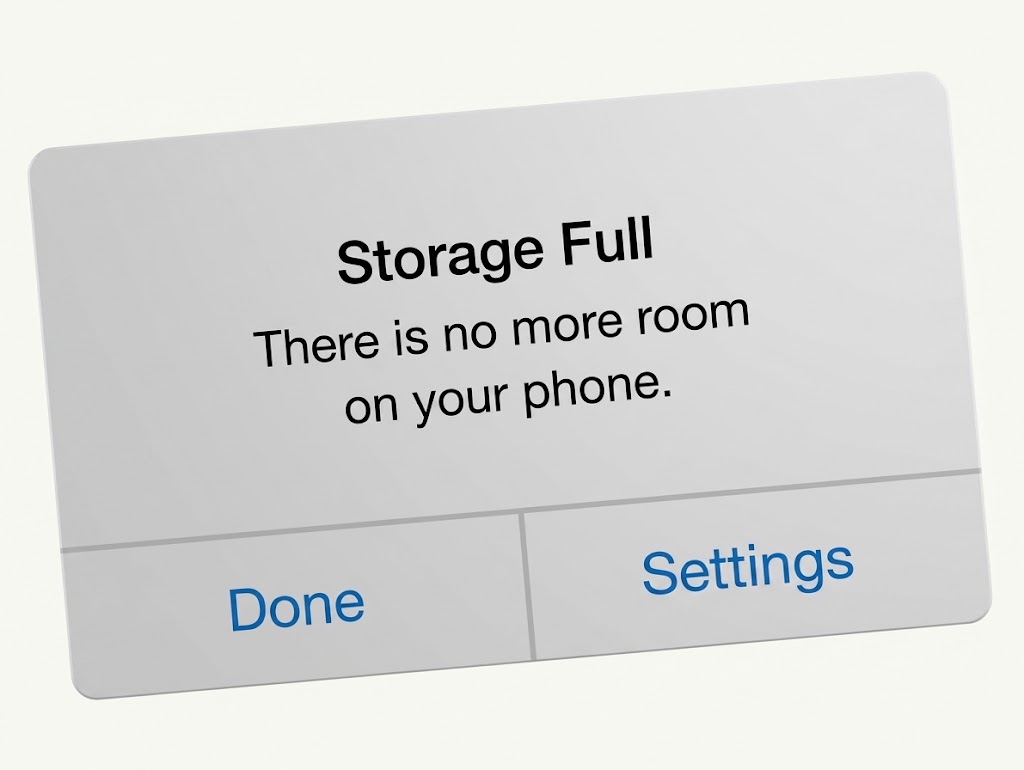
An almost empty gallery does not mean an empty phone. Apps, chat attachments, offline downloads, cloud copies and system resources all count towards internal storage. Here is how to find the cause and free space without deleting important information.
Your phone measures everything stored internally, not just files visible in your gallery. Apps hold data; WhatsApp retains chat media; streaming services keep offline downloads; and cloud services may leave local copies.
Start with the storage breakdown, not the gallery. On iPhone, open Settings → General → iPhone Storage. On most Android phones, open Settings → Storage. Samsung Galaxy users can usually find it under Settings → Battery and device care → Storage. Menus vary by model and software version.
The four-step storage audit
1. Find the category taking the space
Let the phone calculate storage, then note the largest category and apps. Labels vary, but each points to a different place to investigate.
| Storage category | Check first |
|---|---|
| Apps | Open the largest apps and inspect their documents, downloads and stored data. |
| Photos, videos or messages | Check large media, attachments and Recently Deleted or Trash. |
| Other or System | Inspect apps and built-in recommendations; do not delete unfamiliar system files. |
| Downloads or media | Check the Downloads folder and offline sections inside individual apps. |
Think of it as an ownership test: remove app-created media inside that app, offline downloads in the service that saved them, cloud downloads through the cloud service, and leave operating-system files to built-in controls.
Storage is not the same as RAM. Google explains that device storage holds files and apps, while memory runs apps and the Android system. Closing apps does not remove downloaded files. Phone storage is also different from mobile data, which measures network use; see our guide to why mobile data finishes so quickly.
2. Check what an app stores—not just its installation size
Browsers retain website data; social apps store media and temporary resources; streaming apps keep films or playlists; navigation apps can hold offline maps.
On Android, open Settings → Apps → [app] → Storage or Storage & cache. Clear cache removes temporary data. Clear storage permanently deletes the app's stored data and may sign you out or erase local information. Google's Android storage guidance recommends removing unnecessary content inside the app before clearing its storage.
On iPhone, Offload App removes the app but keeps its documents and data. Delete App removes the application and its related data. Offloading may recover little space when documents and data are the main problem.
3. Find media outside your gallery
WhatsApp has its own storage manager: open Settings → Storage and data → Manage storage. On some versions, start by tapping your profile picture. Review large items and sort files by size where available. Delete only media you recognise and no longer need.
WhatsApp's storage-management guidance warns that deleting an item may not remove every copy from the device. Duplicate copies can remain elsewhere, so check before assuming the space has been recovered. Our comparison of photo compression in WhatsApp, Telegram and Instagram shows why a copy received through a chat app may not be identical to the original.
To prevent another build-up, review WhatsApp's Media auto-download settings. Choose which photos, videos and documents download automatically on mobile data, Wi-Fi or while roaming. Also inspect offline libraries in streaming, music, podcast and map apps; these downloads are usually managed inside the app that saved them.
4. Identify whether a file is synced, backed up or stored locally
Cloud storage does not mean every file is cloud-only. A file may be synchronised across devices, included in a backup, or downloaded locally for offline access. The correct cleanup action depends on which copy you are removing.
- Google Photos: Free up space on this device removes eligible local copies after backup. Confirm the correct Google Account and that backup has completed. Removed files may no longer appear in the phone's built-in gallery or be available offline.
- iCloud Photos: Optimise iPhone Storage keeps space-saving versions on the iPhone while originals remain in iCloud. Apple explains that iCloud Photos syncs changes and deletions across connected devices. Do not delete a picture in Photos expecting to remove only its local copy.
- iCloud Drive: In Files → Browse → iCloud Drive, touch and hold a downloaded file and choose Remove Download when available. This removes the device copy while retaining the file in iCloud Drive. Delete is different.
These actions are not interchangeable. Check which service holds the original before removing anything.
What if Other or System is the largest category?
“Other” is not necessarily one hidden folder. Samsung says its category can include app data, system files, cached data and temporary files; it cannot be deleted as one block. Apple also includes system-managed resources such as caches, logs and indexes in its storage accounting.
Use the storage screen to identify large apps and remove data through them. Do not delete unfamiliar system folders or install unknown cleaners promising to remove all System Data. Some system storage is required.
Why does deleting files not immediately free space?
Check Recently Deleted, Trash or Bin in the app where the file was removed. iPhone Photos keeps deleted items in Recently Deleted for 30 days unless permanently removed sooner. Files has a separate Recently Deleted area; Android retention depends on the gallery or file manager.
Duplicate copies may remain, or an app may recreate its cache. Reopen the storage screen after cleanup and compare available space. If it has not changed, check whether you removed the correct copy.
Our recommendation: clean up in order of risk
Start with content you can download again: old videos, music, podcasts and maps. Next, remove unnecessary files from app-managed storage and clear an individual Android app's cache where appropriate. Review WhatsApp attachments and Trash carefully. Only then consider deleting personal photos or using Clear storage or Delete App.
A factory reset is not a routine storage fix. It erases local data and settings. Consider it only after identifying the cause, making a backup and confirming important files and account access can be restored. Our guide to what to do before selling or resetting a phone explains why backup and transfer must come before erasure.
If your Android phone supports a microSD card, you may be able to move photos, videos and documents to it. This does not move every app or system file; iPhones do not support microSD expansion.
Sources & Verification
Google Android Help — Free up storage on your Android device
Our Recommendation
Your phone can run out of storage because apps, caches, downloads and system data take up space even when you have very few visible files.
Frequently asked questions
Is phone storage the same as RAM?
No. Storage keeps apps, photos, files and downloads when the phone is off. RAM supports apps while they run. Closing apps will not remove files from internal storage.
Why is usable space lower than the advertised capacity?
The operating system and preinstalled apps use part of the capacity, so not all advertised storage is available to the user.
How much free storage should I keep?
No universal percentage applies to every Android phone. Apple recommends at least 1GB free on iPhone or iPad to help avoid slowdowns. Large updates or videos may need more.
Will clearing cache stop an app growing again?
No. Apps can recreate temporary files. If one app quickly grows again, inspect its offline downloads, auto-download settings and stored documents instead of repeatedly clearing its cache.
Why is WhatsApp still using space after I delete media?
Other large attachments or duplicate copies may remain elsewhere on the phone. Reopen Manage Storage, check the largest files and review where copies were saved.
Will a factory reset fix a full-storage warning?
It removes local data and settings, but it is a last resort. Back up and verify important files and account access before considering a reset. A full-storage warning is a problem to diagnose, not an instruction to delete your gallery. Identify which category owns the data, then remove the least important local copy first.

WhatsApp Business Platform Charges Are Live: What Nigerian SMEs Need to Check Now

What Really Happens After You Tap “Delete Account”? We Checked 20 Popular Apps

Apple's Touchscreen MacBook Pro: Who Should Pay the $400 Premium?

Spotify Audiobooks in Nigeria: What 15 Hours Really Costs
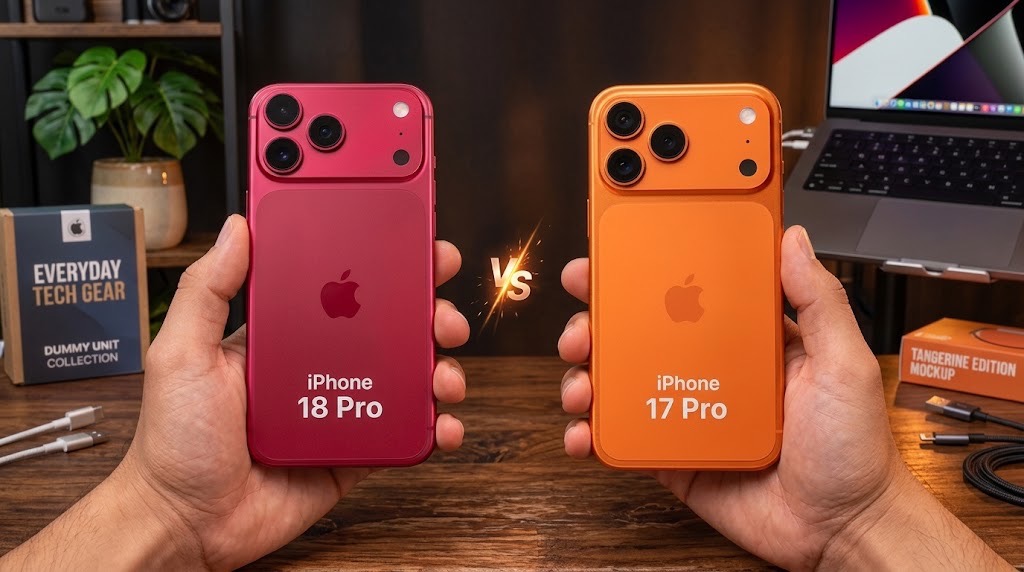
iPhone 18 Pro vs iPhone 17 Pro: What Changed, and Is It Worth Upgrading?

iPhone Duo vs iPhone 18 Pro Max: Foldable Screen or Apple’s Best Conventional iPhone?

Budget Smartphones in Nigeria Could Cost More. How to Avoid Paying More for Less
Follow TechView Africa on WhatsApp
Get TechView Africa updates on WhatsApp. Follow our channel for practical technology news, product guides and digital trends from Nigeria and across Africa.
Leave a comment
Comments cannot be edited or deleted after posting. Please review your comment before submitting.
No comments yet. Start the conversation.