

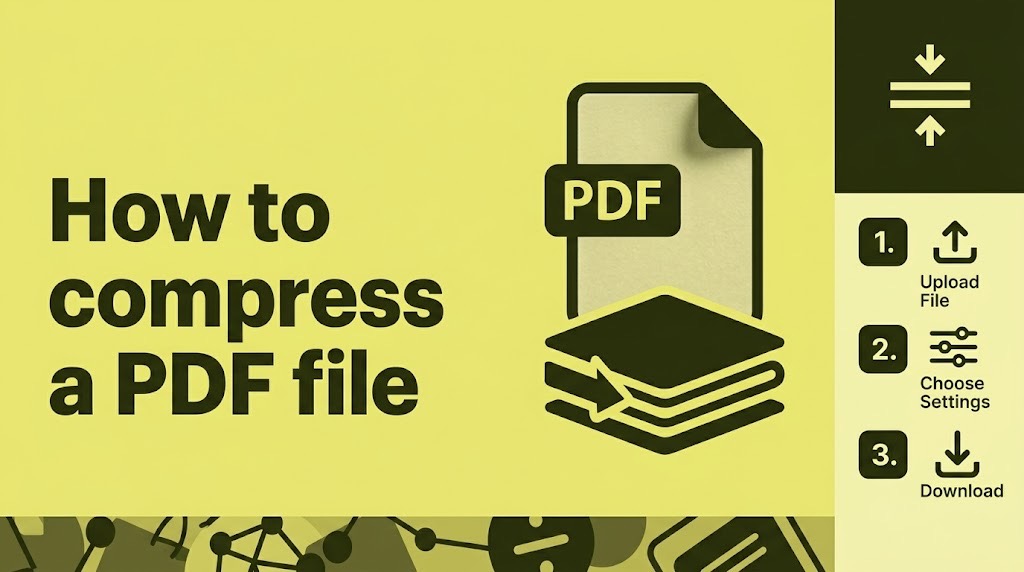
Compress your PDF only enough to meet the upload limit, then check that small text, numbers and stamps remain readable before submitting.
Reduce Your Large PDF File Without Making It Unreadable
Start with moderate compression, save a separate copy and check its size and smallest text. Use an offline tool for sensitive documents, and stop compressing once a readable copy meets the upload limit.
A PDF that fits an upload limit can still fail its real purpose if nobody can read it. Start with moderate compression, save a separate copy and inspect the smallest text before submitting. If the portal says “under 2MB”, check the downloaded file’s size rather than trusting a compressor’s percentage reduction.
Start with the right original
Keep an untouched copy and check the portal’s instructions: maximum size, accepted format, required pages and whether colour matters. Do not remove required pages simply to pass the limit.
If you created the document in Word or another editor, export it directly to PDF first. Avoid turning readable digital text into screenshots and then rebuilding a PDF. Scanned pages are images, so reducing their resolution can also reduce the detail in every letter.
Check the original closely. Compression cannot restore a blurred scan, cut-off name or unreadable stamp; rescan those pages before shrinking them.
Compress offline on Windows
PDF24 Creator provides an offline option for Windows. Its developer says files stay on your computer; this differs from PDF24’s online tools. The listed version when checked was 11.31.1.
- Install Creator from its official download page and open Compress PDF.
- Add a copy of your document. For an ordinary scan, try about 150 DPI with 75% image quality as a starting point, keeping colour where it conveys information.
- Compress and save with a distinct name, such as
application-small.pdf. - Check its size and inspect every page. If fine print deteriorates, return to the original and increase the resolution or quality.
Those settings are a starting trial, not a guaranteed route below 2MB. Creator’s manual documents both controls; its interface was not hands-on tested for this article.
Use an online tool when uploading is appropriate
For a non-sensitive document, open iLovePDF’s Compress PDF tool, select your file, choose Recommended Compression, then compress and download. Check the result before trying Extreme Compression: the tool explicitly describes that option as lower quality.
This involves sending the document to an online service. iLovePDF says routinely processed files are deleted within two hours and offers manual deletion from the download screen. That is the provider’s stated policy, not an independent deletion audit.
For identity documents or confidential workplace files, prefer an approved offline workflow. If you also use AI to review these documents, read our guidance on information you should not casually upload to an AI tool.
What our synthetic compression test showed
On 10 October 2026, we generated one three-page A4 document containing six- to twelve-point text, fictional reference numbers, faint lettering and a blue sample stamp. We rendered it at 300 DPI, added mild artificial paper noise and stored the pages as images to simulate a scan.
We then compressed that scan locally with Ghostscript 10.02.1, separately using its /ebook and /screen presets. These are Ghostscript results, not measurements of PDF24 or iLovePDF. Both compressed copies retained all three pages.
| Version | File size | Result against a 2MB limit |
|---|---|---|
| Simulated scan, 300 DPI | 16.68 MB | Too large |
/ebook, approximately 150 DPI | 0.30 MB | Below limit |
/screen, approximately 72 DPI | 0.10 MB | Below limit |
Sizes use decimal megabytes: one MB equals one million bytes. The source PDF containing digital text was just 4,754 bytes, illustrating why preserving an original export can be better than compressing a scan.
In enlarged comparisons, eight-point text remained readable in the 150 DPI copy. The 72 DPI copy visibly degraded small lettering and stamp details. Its smaller size offered no necessary advantage for this upload target.
This was a deliberately simple synthetic document with a losslessly stored scan, so its large reduction is not a prediction for your files. The test pack includes originals, outputs, exact byte counts and reproduction instructions.
Check readability before uploading
We inspected rendered pages at 390 pixels wide and at three times that width to approximate a narrow screen and zoomed viewing. This was a simulation, not a physical-phone test. At full-page width, tiny text still needed enlargement.
On your phone, open the downloaded PDF and zoom into names, dates, reference numbers and stamp lettering. Compare them with the original. Check page order, missing edges and faint marks. Our photo-sharing compression test also explains why file size alone does not establish visual quality.
If the file remains too large, retry from the original with slightly stronger settings. Split it only if the portal permits multiple attachments. If readable copies still exceed the limit, ask the receiving organisation for an alternative submission method.
Our Recommendation
Choose the least aggressive compression that meets the portal’s limit and preserves every required detail. Keep sensitive files offline where possible, retain the original and stop shrinking once the readable copy is small enough.
Sources & Verification
TechView-Africa-PDF-Compression-Test-Pack.zip
PDF24 Creator: official download and offline-processing information
PDF24 Creator manual: compression settings
Frequently asked questions
Can every PDF be compressed below 2MB?
No. The achievable size depends on the number of pages, images and existing compression. If reaching 2MB makes required details unreadable, split the document only where permitted or ask for another submission method.
Is reducing PDF size the same as reducing quality?
Not always. Some compression removes redundant data without changing visible content. Reducing image resolution or using stronger image compression can remove detail, particularly in scanned text and stamps.
Why is my PDF still rejected when its size shows 2MB?
The displayed size may be rounded, and the portal may require a file strictly below its limit. Check the exact file size and allow some margin. Also confirm that the file meets the portal’s format and other upload requirements.
Can I restore the quality after compressing a PDF?
Detail discarded by lossy compression cannot reliably be recovered from the compressed copy. Return to the untouched original and create another copy using gentler settings.
Does a readable PDF need to look sharp without zooming on a phone?
Small print on a full A4 page usually needs enlargement on a narrow screen. Zoom in and confirm that individual letters, numbers and stamp details remain distinguishable.
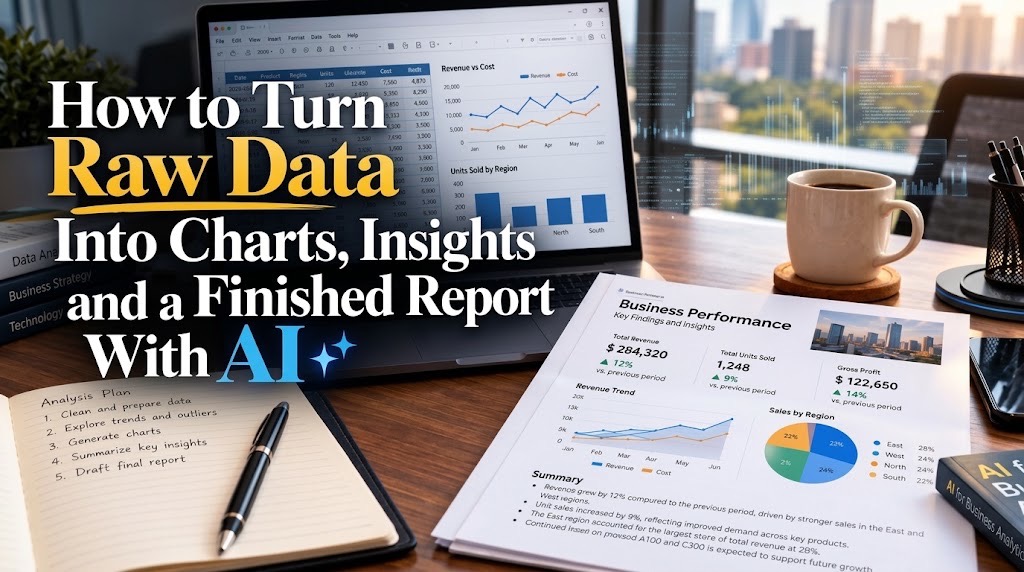
How to Turn Raw Data Into Charts, Insights and a Finished Report With AI

How to Create a Consistent Brand Identity With AI Instead of Random AI Graphics
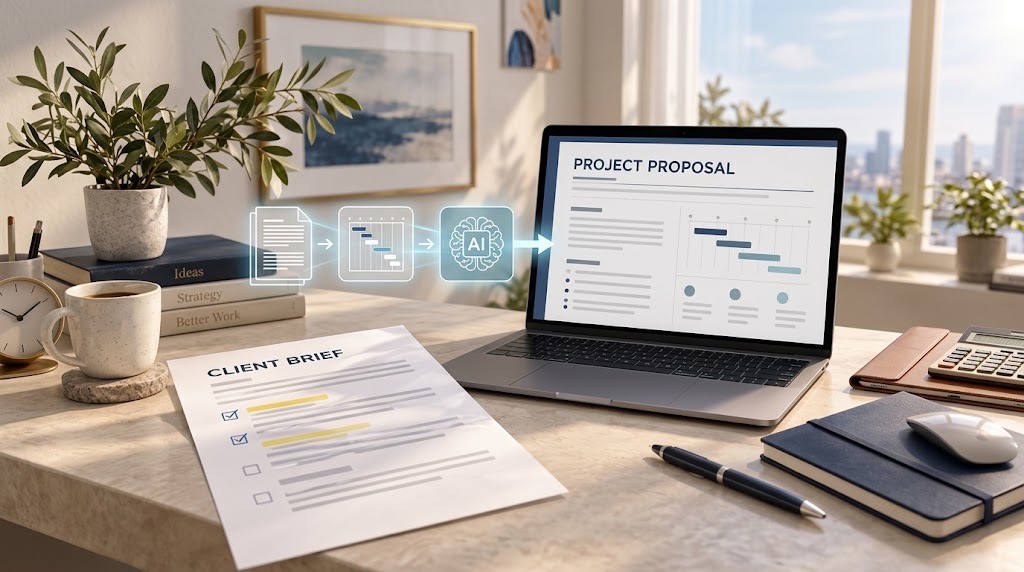
How to Create a Professional Proposal With AI From a Client Brief Without Inventing the Details
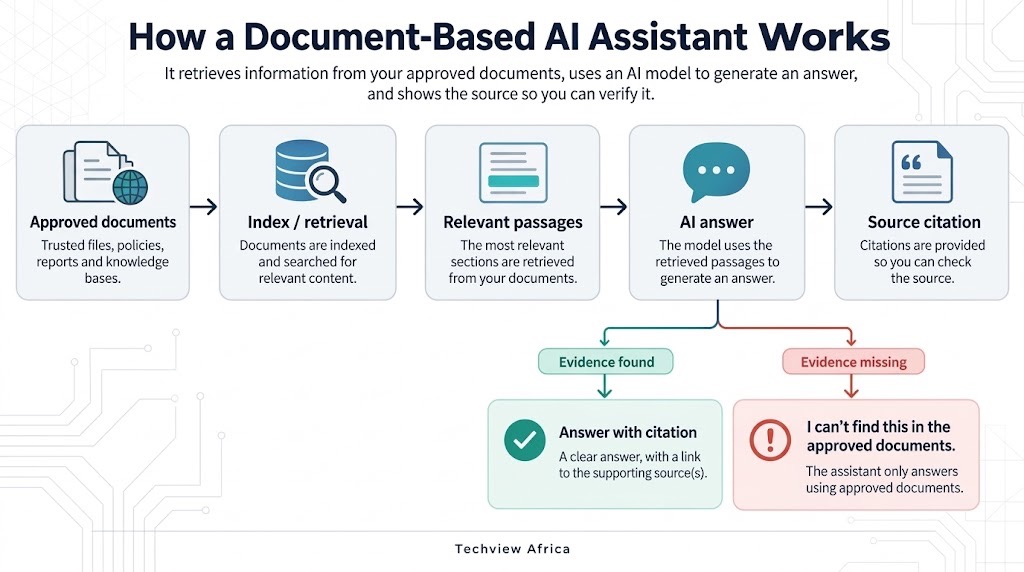
How to Build an AI Assistant That Answers From Your Own Documents and Shows Its Sources

How to Build a Website With AI That You Can Still Edit, Move and Own
How to Create a Professional Presentation With AI Without the Generic AI Look

Before You Connect AI to Your Email, Files or Photos, Check These 5 Things
Follow TechView Africa on WhatsApp
Get TechView Africa updates on WhatsApp. Follow our channel for practical technology news, product guides and digital trends from Nigeria and across Africa.
Leave a comment
Comments cannot be edited or deleted after posting. Please review your comment before submitting.
No comments yet. Start the conversation.