

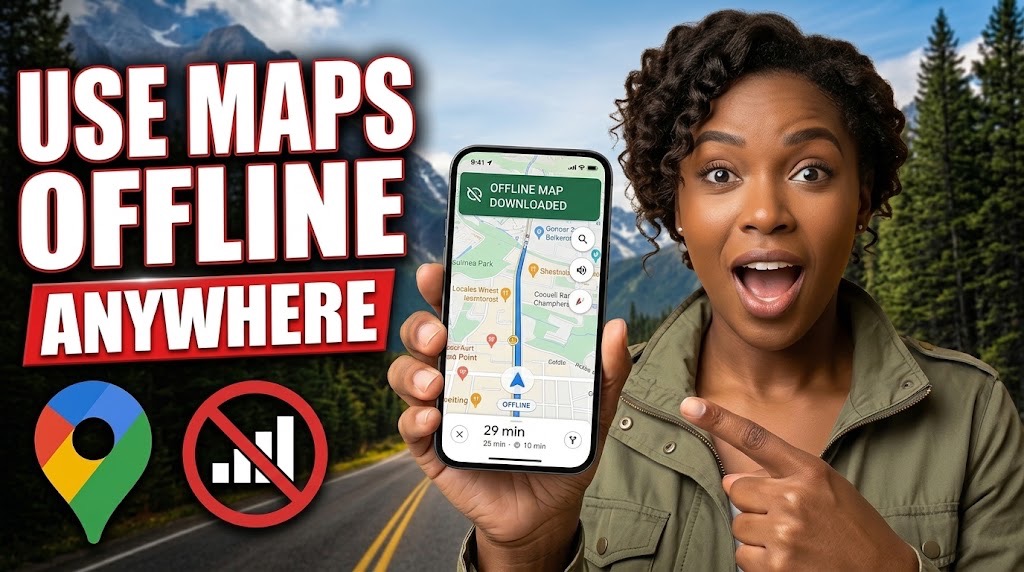
Downloading a map is only half the preparation. Before travelling, confirm that your complete route is saved, test driving directions without internet access and check the map's expiry date. Offline navigation does not replace live traffic information or reliable knowledge of local road conditions.
How to Download Google Maps for Offline Navigation in Nigeria
To use Google Maps without mobile data, open the app while connected to the internet, tap your profile picture, select Offline maps → Select your own map, choose the area covering your journey and tap Download. Offline driving directions can work when the entire route is covered, but live traffic, alternative routes, walking, cycling and public transport directions are unavailable offline.
A saved destination is not the same as a downloaded map. If mobile coverage disappears during a journey, a place you searched for earlier may not be enough to help you find the next turn. Google Maps can store an area on your phone so that compatible driving directions remain available without an internet connection.
That preparation is useful for journeys beyond reliable network coverage in Nigeria, but it has limits. The safest approach is to download the whole travel corridor, check it while you still have connectivity and try a short offline test before departure.
Download the area, not just the destination
You need Google Maps, sufficient free phone storage and an internet connection, preferably Wi-Fi. On Android, Google says you should be signed in to Maps. On iPhone or iPad, do not use the app's Incognito mode for the download.
- Open Google Maps and tap your profile picture or initial.
- Choose Offline maps, then Select your own map.
- Move and resize the selection box until it covers your departure point, destination and the roads linking them.
- Check the estimated download size, then tap Download.
- Return to Offline maps and confirm that the area appears in your list.
You can also search for a city or place and use its More → Download offline map option when offered. The wording and placement may vary with the device and app version.
For example, preparing for a drive from Lagos towards Ibadan means checking the road corridor as well as the two endpoints. A download centred only on your destination may leave part of the journey outside the saved area. If one selection cannot cover everything, check whether separate overlapping areas can cover the route.
Google cautions that offline downloads are unavailable in some countries or regions. Rather than assuming every Nigerian location is supported, check that your chosen area can actually be downloaded.
Check storage and mobile-data settings
The app estimates how much space the selected area needs. Narrowing the selection can reduce the download size; covering a larger corridor may require more storage.
If your phone is nearly full, inspect existing app downloads before removing important photographs or documents. TechView Africa's guide to hidden phone storage explains where forgotten offline files can accumulate.
On supported Android devices, Google Maps can save offline areas to a suitably configured SD card. The option is under Offline maps → Settings → Storage preferences; it is not available on every phone.
Downloading over Wi-Fi also avoids using a large mobile bundle. If your data allowance disappears unexpectedly, check the phone's per-app figures rather than assuming that the map itself is always responsible. Our guide explains why mobile data can finish faster than expected.
Run a safe airplane-mode test before leaving
A completed download is not proof that every part of your intended journey is covered. Test it while safely stationary, at home or before starting the vehicle.
- Open the downloaded area and note your intended start and destination.
- Turn on airplane mode, and make sure Wi-Fi remains off so the test genuinely has no internet connection.
- Reopen Google Maps, find the saved area and request driving directions between two points inside it.
- Check whether the app displays a route. Then try the walking or public transport option and note the difference.
- Restore connectivity after the check. If driving directions fail, enlarge or replace the downloaded area while you still have internet access.
This is a repeatable pre-departure check, not a substitute for testing positioning while travelling. Location accuracy can vary by handset and surroundings. Never operate the phone while driving; a passenger can help, or you can stop somewhere safe.
What offline Google Maps can and cannot do
Google documents a clear distinction between offline map viewing and fully connected navigation. When the entire driving route is within the downloaded area, Google Maps can provide driving guidance without a live data connection.
It does not provide live traffic conditions, alternative driving routes, or walking, cycling and public transport directions while offline. That matters if an accident, road closure or unexpected diversion changes the best way forward. Offline travel-time estimates cannot reflect current congestion.
You should also avoid assuming that every new street, access road or business entrance is accurately represented. Keep the destination's written address and any essential access instructions available separately.
Where you need to identify a particular building, TechView Africa's digital postcode guide for Nigeria explains how to verify the location. A postcode alone does not download the roads around it.
Keep the map usable until the trip
Offline maps need updating before they expire. Google says its app attempts an automatic refresh over Wi-Fi when a saved map is within 15 days of expiry. That does not mean the update is guaranteed, so revisit Offline maps before a long journey.
If an area shows an update or expiry warning, select it and tap Update while connected. Check again after substantial route changes, and remove maps for completed trips if storage becomes tight.
Our Recommendation
Download your route corridor over Wi-Fi, allow more coverage than just the destination and confirm the result with a stationary airplane-mode check.
Treat offline Google Maps as a practical backup for driving where the signal fails not as a source of live road conditions or a replacement for safe navigation decisions.
Verification Links
The following official sources support the instructions and technical limitations explained in this guide.
Frequently asked questions
1. Can Google Maps work in Nigeria without mobile data or Wi-Fi?
Yes. Google Maps can provide offline driving directions in Nigeria if you download the required area beforehand and the entire route falls within the saved map. However, live traffic information and alternative driving routes will not be available without internet access.
2. Will Google Maps still show my location when there is no network signal?
Usually, yes. Your phone's GPS can determine your location without mobile data or Wi-Fi, provided location services are enabled and the device can receive satellite signals. However, positioning may be slower or less accurate inside buildings, tunnels or areas with obstructed satellite reception.
3. Can I download the entire map of Nigeria for offline use?
Google Maps does not provide a simple one-tap download for the entire country. Instead, you can download individual areas and save multiple maps to cover longer journeys. Ensure that neighbouring downloads overlap sufficiently to avoid gaps along your intended route.
4. What happens if I travel outside my downloaded Google Maps area?
Google Maps cannot guarantee offline navigation beyond the downloaded coverage. You may lose access to the map details or directions needed for the uncovered portion of your journey. Before departing, check that your saved maps include the complete route and any important connecting roads.
5. Why is my downloaded Google Maps area not working offline?
Possible reasons include an incomplete download, expired map data or a journey extending beyond the saved area. Open Google Maps → Profile → Offline maps to check the download's status and coverage. If necessary, reconnect to the internet, update the area and test driving directions again before travelling.
PDF Too Large to Upload? Reduce Its Size Without Making It Unreadable

How to Turn Raw Data Into Charts, Insights and a Finished Report With AI

How to Create a Consistent Brand Identity With AI Instead of Random AI Graphics

How to Create a Professional Proposal With AI From a Client Brief Without Inventing the Details
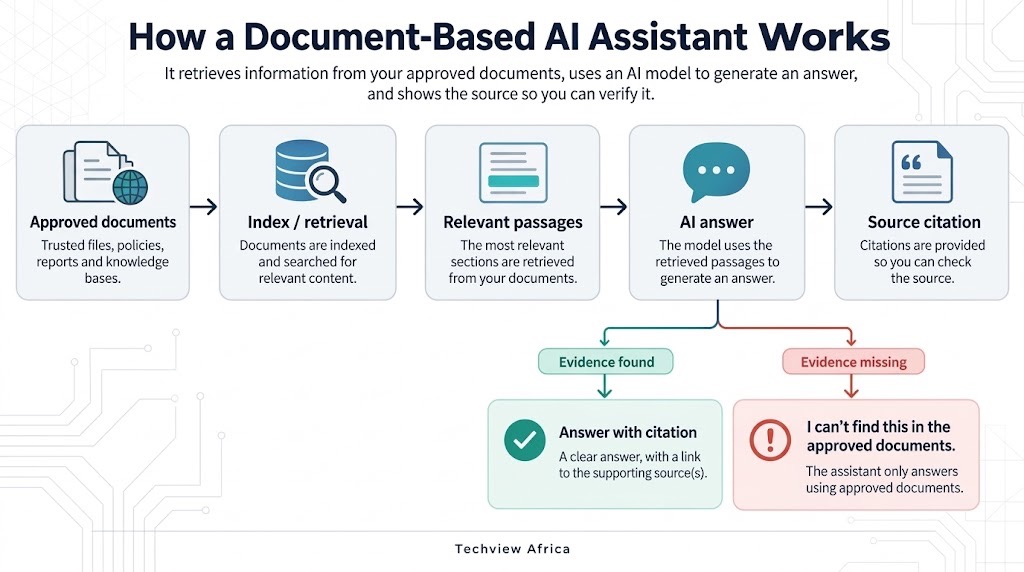
How to Build an AI Assistant That Answers From Your Own Documents and Shows Its Sources

How to Build a Website With AI That You Can Still Edit, Move and Own

How to Create a Professional Presentation With AI Without the Generic AI Look
Follow TechView Africa on WhatsApp
Get TechView Africa updates on WhatsApp. Follow our channel for practical technology news, product guides and digital trends from Nigeria and across Africa.
Leave a comment
Comments cannot be edited or deleted after posting. Please review your comment before submitting.
No comments yet. Start the conversation.